Group buys・Arrivals・Wardrobe・Resale

Group-buy orders stop getting lost in chat threads, every piece has a next step

Paste the Facebook/LINE product list text, check it, and create pre-order and not-arrived records. Store it when it arrives, and pass it straight to a sale bundle when it no longer fits. No more scrolling back through every message.

Manage 50 items freeParsed from text, confirmed by youRemove personal data before sharing
See the free and paid plans
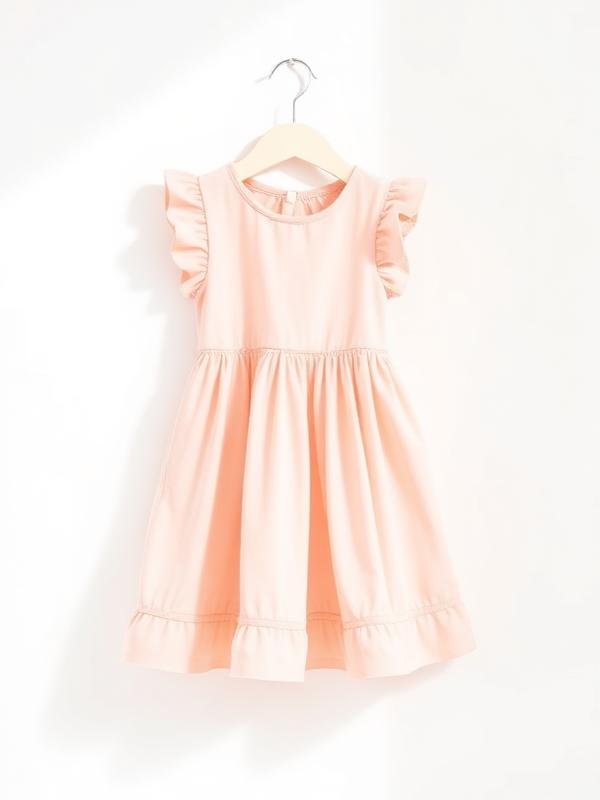
Item card for a pink kids' dress

My wardrobe

Spring pink dress

Wear soon

Paste the product list text

Cream knit cardigan|90|NT$680

Brown hooded jacket|2T|NT$920

Floral long-sleeve dress|3T|NT$1,180

Confirm line by line after parsing, then create the items

Group-buy arrival progress

You know where every piece is

Pre-order
8
Not arrived
4
Stored
12
One record, all the way to resale
File from order textPre-order and not arrivedStore in the wardrobeSize and statusSale bundleCutouts and outfits

From order to next home

From the moment you order,
and the wardrobe takes shape

Orders, arrivals, storage and resale used to live in separate chats and spreadsheets. Minidrobe keeps one set of data per item, so a change of status only updates the next step.

01

Order

Paste the product text and build the whole group-buy list at once

Copy the product list text from LINE, a Facebook group, OrderPally or iPlus; it parses name, brand, size and price, and you confirm each line before filing.

It parses text, not screenshot OCR. Before pasting, remove names, phone numbers, addresses and payment details.

See how to organise group-buy orders
02

Arrived

Follow it from pre-order and not arrived through to actually stored

Every item keeps its source, size, price and current status. Check the delivery against the list, move what arrived to stored, and leave anything missing as not arrived.

Once stored, search by brand, size, condition and your own tags — no going back through chat history.

See how to organise a kids' wardrobe
03

Resale

Outgrown? The original item data flows straight into a sale bundle

Mark items sellable, add condition and price, build sale bundles by size or season, then share one public link to a group or LINE.

Update the sold status once a deal closes, so the wardrobe and the sale list stay in step.

See the Facebook/LINE selling workflow

A four-step routine

It starts with one block of order text — that simple

  1. 1

    Paste text

    Keep the product details from the order, and strip personal data before pasting.

  2. 2

    Confirm line by line

    Check brand, size, price and quantity, then file it properly.

  3. 3

    Track arrivals

    Pre-order, not arrived and stored make it clear where each piece is.

  4. 4

    Keep it in use

    When it no longer fits, fill in the condition and build a sale bundle you can share safely.

Good afternoon — what would you like to do?

My Minidrobe

Minidrobe app icon

Item arrival status

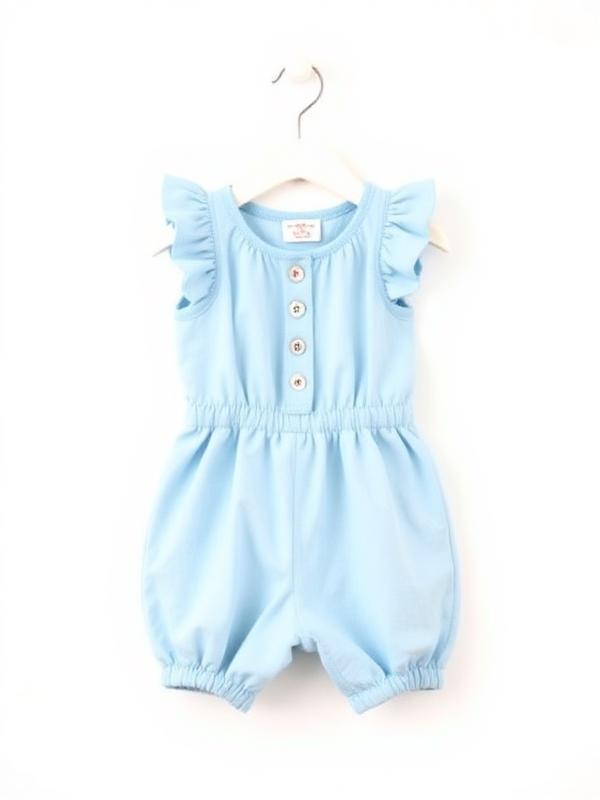
Preview of a blue kids' garment in the app

4 not arrived

Stored this week

Wardrobe
Add
Marketplace
Minidrobe iOS App

Minidrobe for iOS

iPhone and iPad

Confirm arrivals on your phone, organise in bulk on your computer,
The web and the app share one wardrobe

Paste order text and organise in bulk on the web; add, check and update item status on your phone. Cutouts, outfits and the calendar stay as creative tools for a wardrobe you have already sorted.

  • Quick photo adding and full item editing
  • See pre-order, not arrived, stored and sellable status
  • On-device/cloud cutouts and outfit creation
  • Marketplace, transactions, messages and warehouse progress
  • Traditional Chinese, English, Japanese

Free to download, with in-app purchases. Requires iOS 17.0 or later.

Questions, answered

Things you might want to know before starting

You don't need every garment sorted first, and you don't need to learn every feature at once. Start with the one thing you need most right now.

Go to the group-buy organising guide
How do I import a group-buy order?+

Copy the product list text from LINE, a Facebook group or an order system, paste it into Minidrobe, confirm brand, size, price and quantity line by line, then create the items as pre-order or not arrived.

Can it read order screenshots?+

This flow currently parses text, not screenshot OCR. Copy the product text and paste it in, after deleting names, phone numbers, addresses, pickup stores and payment details.

What's the difference between pre-order, not arrived and stored?+

Pre-order means ordered but not yet confirmed as shipped; not arrived means confirmed as shipped and still in transit; once it arrives and you have checked size and condition, change it to stored.

Do the web version and the iOS app sync?+

Yes. Sign in with the same account and your items and available sync data use that one account — ideal for bulk organising on a computer and checking or adding on your phone.

Do I have to re-file outgrown clothes to sell them?+

No. Mark an item in your existing wardrobe as sellable, add its condition and price, and build a sale bundle — no retyping brand and size.

Sort your first order,
so every piece has a next step

Use the web version or download the iOS app, sign in to the same account on both, and pick up wherever you left off.